- The correct functioning of biometrics depends on updated drivers and compatible hardware such as IR cameras or specific readers.
- Reconfiguration of biometric data and cleaning of system folders usually eliminates recognition errors.
- There are built-in diagnostic tools and permission settings that allow you to restore secure access to the device.

I'm sure it's happened to you: you try to log into your computer with a touch or a glance and, suddenly, the system does not recognize you. Windows Hello is great for avoiding endless passwords by using a PIN, facial recognition, or fingerprint, but when it decides to fail, it can be a real headache.
The good news is that most of the time it's not a serious hardware failure, but a minor software glitch or an outdated driver. In this article, we'll break down all the possible solutions so you can regain access to your computer in no time and without any hassle.
Fix facial recognition
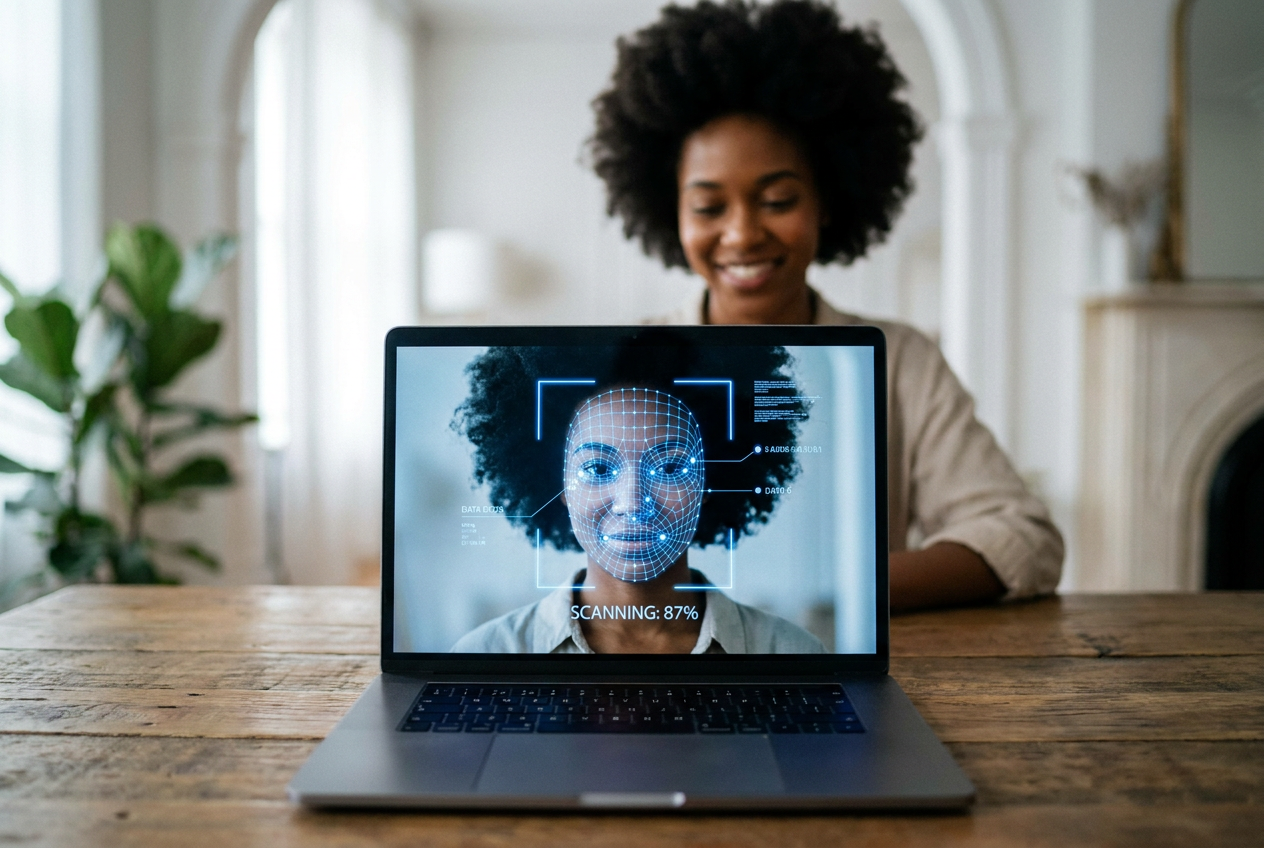
For the IR camera to work, it needs a clear view and confirmation that you're a real person, not just a photo. If you get the annoying "unrecognized" message, the first thing to try is improving recognition in the settings menu. Simply go to the login options and select the option to rescan your face, which is ideal if you've changed your look or are now wearing glasses.
If things continue to go wrong, the healthiest thing to do is delete current settingsCompletely disable facial recognition and start from scratch by setting it up again. Don't forget that if the problem persists, run the troubleshooter for Windows It can give you the definitive clue as to what's wrong with the camera.
Solutions for fingerprint readers
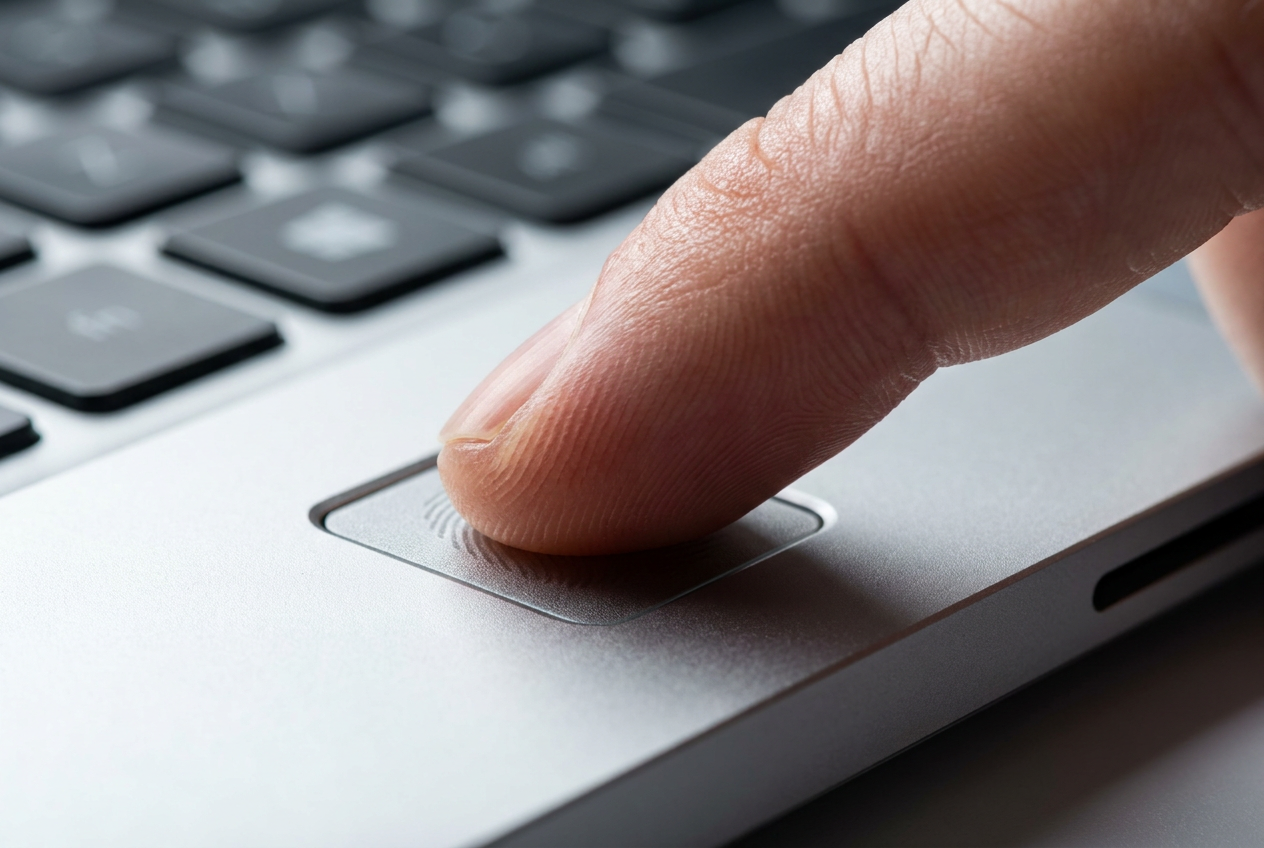
When the fingerprint sensor doesn't register, it could be because your finger is dirty or the pressure angle isn't correct. If the problem persists, we recommend deleting the registered fingerprint and adding the finger again. A useful tip is to register multiple fingers so you have alternatives if one has a small injury or isn't read correctly.
On a technical level, it is essential to take a look at the Device administratorIf you see a yellow triangle in the biometric devices section, it means there's a conflict. You can try to update driver automatically, or if that doesn't work, uninstall the device and restart your PC so that Windows I installed it cleanly from scratch.
When the PIN causes trouble
Sometimes, the system prompts you to create a new PIN without warning, usually after a major security update . If you get stuck during this process, the easiest solution is to log out completely and log back in to try creating the PIN again. In more stubborn cases, resetting the PIN is the quickest way to regain control.
Critical errors: Something went wrong
If you encounter the generic message "Something went wrong, please try again later," your system files may be corrupted. An advanced solution is clean the NGC folder, which is where Windows Save the biometric data. You must go to the path C:\Windows\ServiceProfiles\LocalService\AppData\Local\Microsoft\NGC and delete its contents, although keep in mind that you will probably need take possession of the folder to be able to modify it.
Additionally, it's vital to ensure the system is up to date. Go to Windows Update and check for any pending patches, as Microsoft releases constant fixes for these bugs. If none of this works, you can launch the diagnostic tool using the command msdt.exe -id DeviceDiagnostic in the Command Prompt run as administrator.
Advanced options and physical security
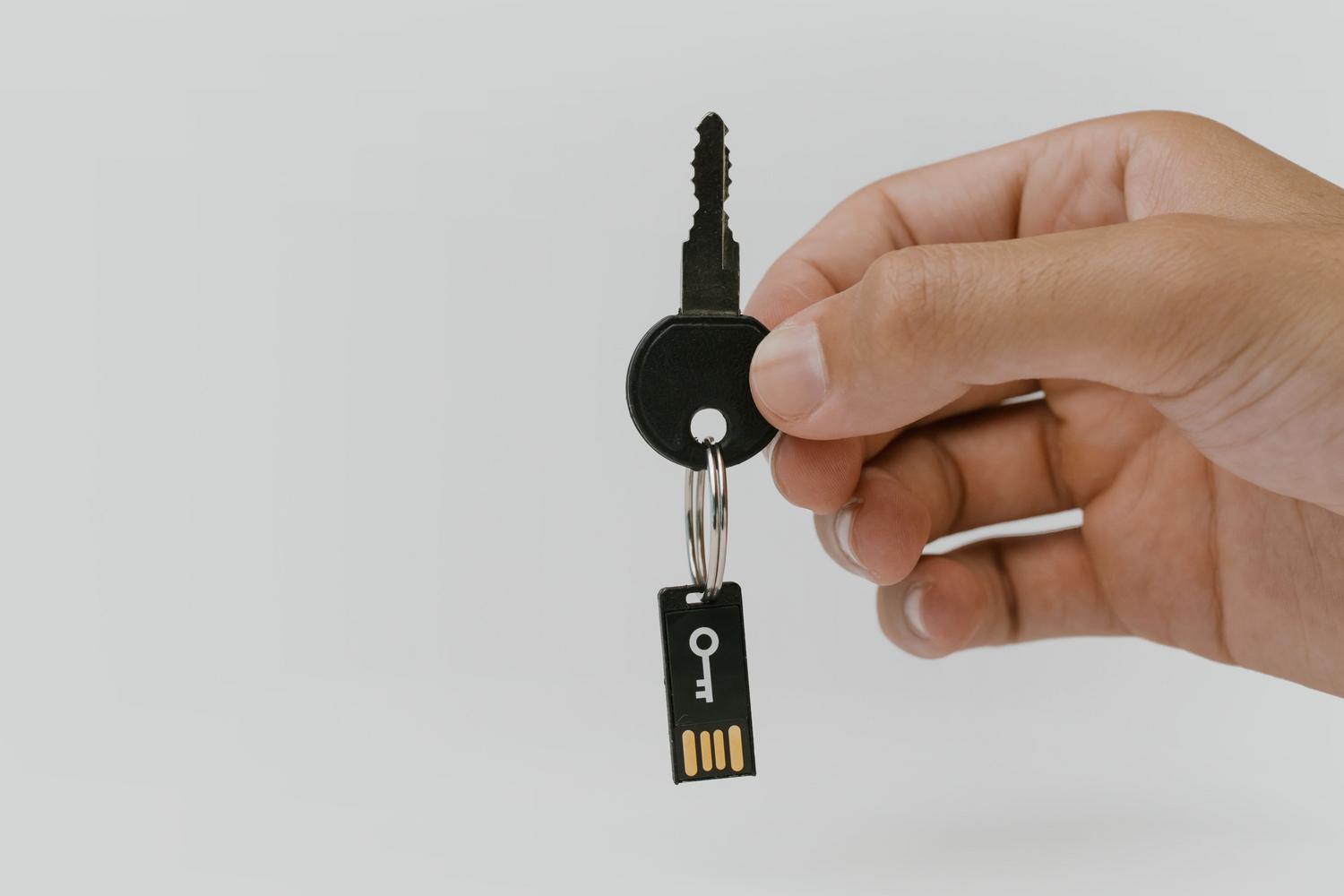
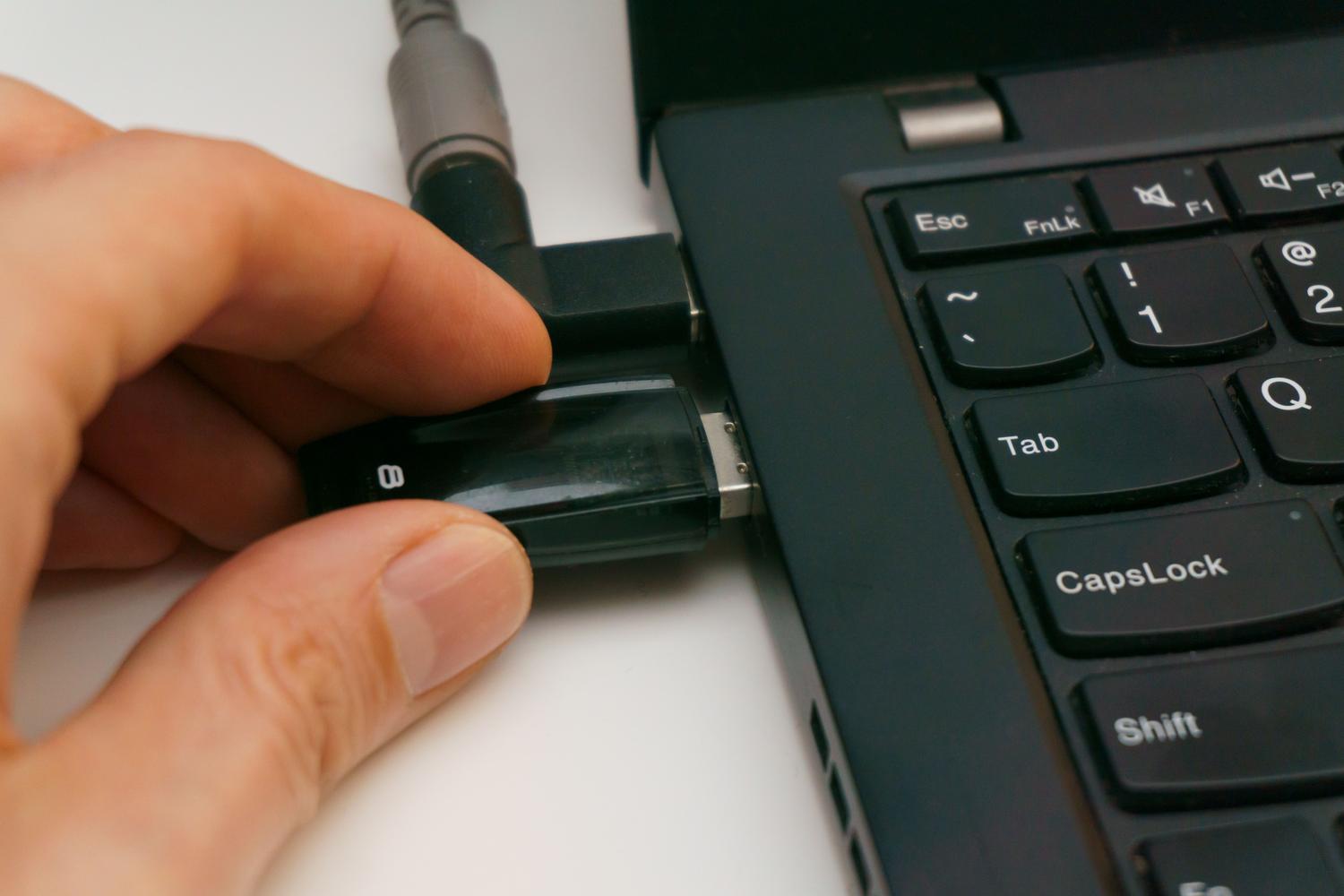
For more professional or high-security environments, there are physical security keys (such as FIDO2-compatible USB or NFC devices). These require a unique PIN and are much more robust than a password. You can manage these keys from your account settings, allowing you to reset the key to factory settings or change its PIN if you forget the old one.
There is also the function of dynamic lockThis app uses your phone's Bluetooth to automatically lock your PC when you move away. Simply pair your phone in the devices section and check the permission box to allow it to work. Windows detect your absence and Protect your information without you having to do anything.
If you've exhausted all other options, from updating drivers to deleting hidden folders, you could check if your antivirus software is interfering with biometric services. As a last resort, you can always reset your computer from the recovery menu, although it's best to back up your data first to avoid losing important files. Keeping your hardware clean and your software up to date is key to ensuring smooth biometric access and preventing you from being locked out of your own machine.