- Differential diagnosis between power failures, BIOS errors and graphics driver problems.
- Hardware reset procedures using EC Reset, RTC Reset and CMOS cleaning.
- Operating system recovery methods Windows through the recovery environment and safe mode.

Having your Asus computer freeze and the screen go black is a real headache that can happen to anyone. Sometimes it's just a temporary scare because the system has frozen, but other times it can be a more serious problem with internal components or firmware that leaves you completely unusable.
There's no need to panic or rush to a repair shop. Most of the time, these problems can be fixed with a few simple restarts and software tweaks you can do yourself at home. Let's take a step-by-step look at what's happening and how to get your machine working again.
When the equipment shows no signs of life
If pressing the power button does absolutely nothing—no lights, no fans—the first thing to check is the power supply. Make sure the power cord and adapter are properly connected and that the wall outlet is working. If you're using a power strip, check that it's switched on.
If everything seems fine, try removing any connected peripherals , such as mice, keyboards, external hard drives, or SD cards, as a faulty device can sometimes prevent the boot process. On laptops, if you can remove the battery, do so and hold down the power button for about 40 seconds to perform a hard reset and release any residual power.
Power light is on but the screen is black.
This is the most common scenario: the PC appears to be on, but the screen displays nothing. Before assuming the screen is broken, try the keyboard shortcut. Windows + Ctrl + Shift + BThis command forces the video driver to restart and can fix the problem in a second if it's a communication failure.
If you have an external monitor available, connect it to see if the problem is only with the laptop screen. If the external monitor works, the fault is likely with the internal panel or the flex cable . You can also try using function keys, such as Fn + F7 or F8 , to toggle the image output or adjust the brightness, as you might have inadvertently lowered it to the minimum.
The memory training process
If you've updated the BIOS, changed the RAM modules, or disconnected the internal battery, it's normal for the PC to take a while to display an image. This is due to memory training , a process where the motherboard recognizes the RAM. Depending on your RAM capacity, this can take between 5 and 10 minutes.
The most important thing here is to be patient and leave the device plugged in. Don't force it by turning it off, as this could corrupt the process. On some modern models, you'll see text indicating that the system is working on the training , but on others, the screen will remain black until the process is complete.
BIOS recovery and firmware failures
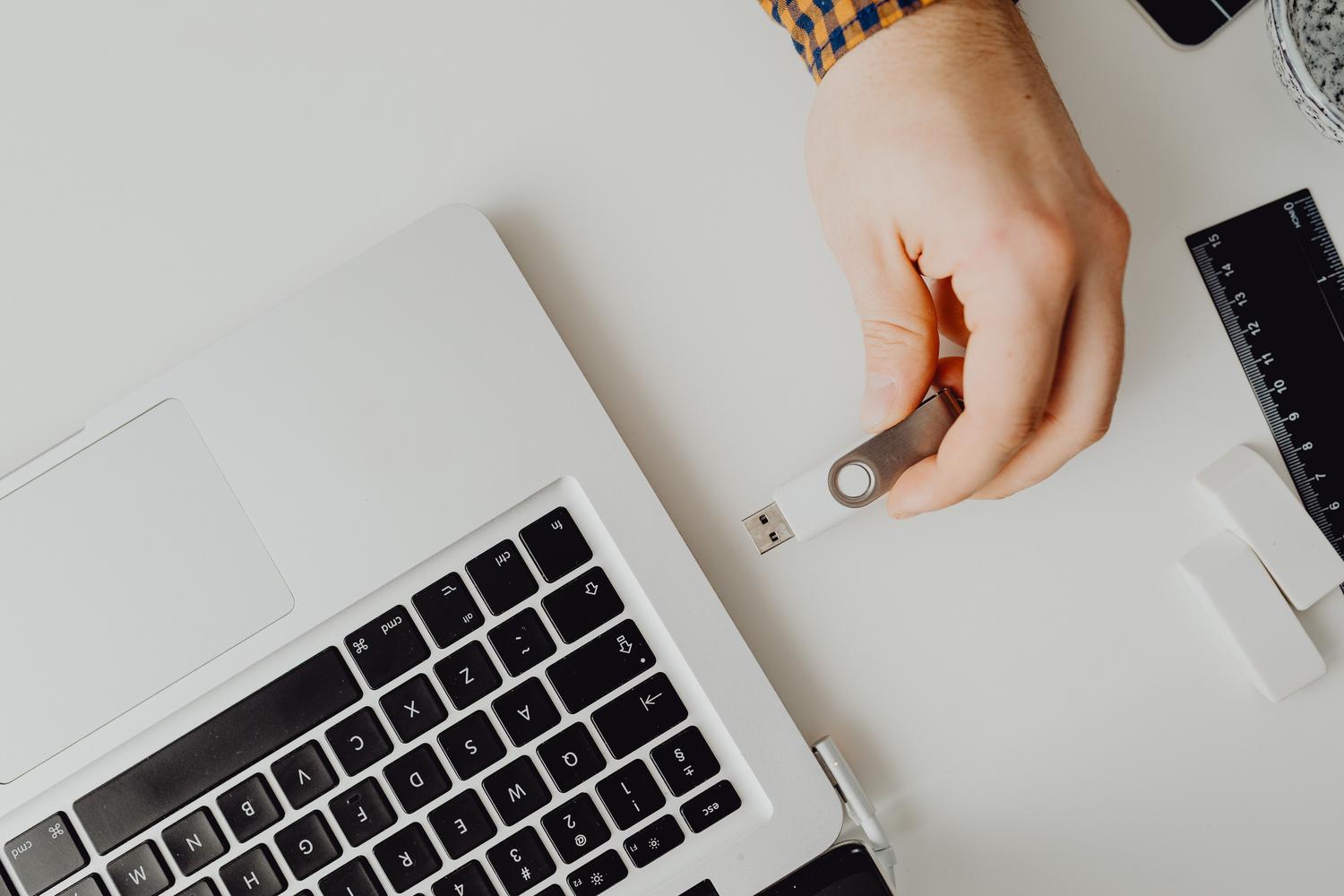
A BIOS update failure can render your computer unusable. If you see a screen with white text on a black background or if the power indicator is flashing, the system may be attempting an automatic BIOS ROM recovery . This process is slow and can take several hours, so do not interrupt the power supply.
If you need to perform a manual update to recover your computer, you'll need another computer and a USB drive formatted in FAT32 . Download the BIOS file from Asus support, rename the extension to .bin , and place it in the root directory of the USB drive. Then, when you turn on the affected PC, repeatedly press Ctrl + R (or Ctrl + Home) to enter recovery mode and use the EZ Flash tool.
Problems with the operating system and drivers
If the computer passes the BIOS test but the screen goes black just as it enters the desktop... WindowsThe culprit is usually the graphics card driverTo fix this, you need to log into the Safe ModeIf you cannot access it, force a shutdown three times in a row during startup so that Windows Activate the Recovery Environment.
Once in safe mode, go to Device Manager and uninstall the video driverThen, restart your computer and install the most stable and up-to-date version from the official Asus website. It is also recommended to disable the quick start Windows from the power options, as it sometimes creates conflicts that prevent the screen from waking up correctly.
Advanced hardware and disk settings
On desktop computers, if you've installed a new dedicated graphics card , the system may need to recognize it first. Try connecting the monitor to the motherboard's integrated graphics port, boot the system, confirm that the card is detected in Device Manager, and then reconnect the cable to the dedicated card.
If you suspect the problem is the hard drive, you can use boot repair tools to fix the corrupt MBR or bad sectors. Restore the system to a previous checkpoint It is also a viable option if the problem started after installing a program or an update. Windows that doesn't play well with your hardware.
To resolve the vast majority of these issues, the key is to eliminate possibilities, starting with the simplest, like cables and keyboard shortcuts, and progressing to more complex solutions such as reinstalling the BIOS or formatting the system. Keeping drivers updated and performing periodic power cleanups by resetting the embedded controller are usually the most effective ways to prevent your Asus screen from going black.