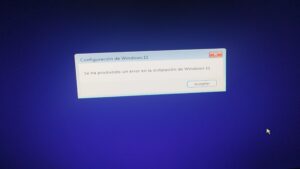
- Windows 11 shows that warning because the Microsoft Store Only option prevents the installation of executables not verified by the system.
- The message does not imply that the app is dangerous; it indicates that Windows It cannot automatically verify its origin.
- It's a security measure for demanding users, but it can make installing professional tools more difficult; there's an option to allow external sources when necessary.

If you are trying to install a program on your computer and Windows 11 shows you the notice “This application has not been tested by Microsoft”, do not worry: This does not mean the app is dangerous. nor that your computer is malfunctioning.
This message appears because the system has an option enabled that only allows apps to be installed from the Microsoft Store , automatically blocking the installation of any executable file downloaded from the Internet or an official website.
This measure is designed for users who want maximum security , but in practice it can become a hindrance if you need to install professional tools or programs not available in the Microsoft Store. Fortunately, disabling this restriction is very easy.
Why does this message appear in Windows 11?
Windows 11 includes a setting called “Choosing where to get the apps”When it is set to “Microsoft Store only”Any executable (.EXE or .MSI) that you try to install will display this warning:
"The app you're trying to install isn't a Microsoft-verified app. Installing from the Microsoft Store helps protect your PC and keeps it running smoothly."
It does not indicate that the application is harmful.It simply means it doesn't come from the Store, so Windows It cannot verify it automatically.If you need to diagnose problems, you can View and understand the error log in Windows 11If you wish to install third-party programs, you will be required to change this setting.
How to remove the warning and allow the installation of external applications
The steps to follow in this case are very simple and they work in any edition of Windows 11:
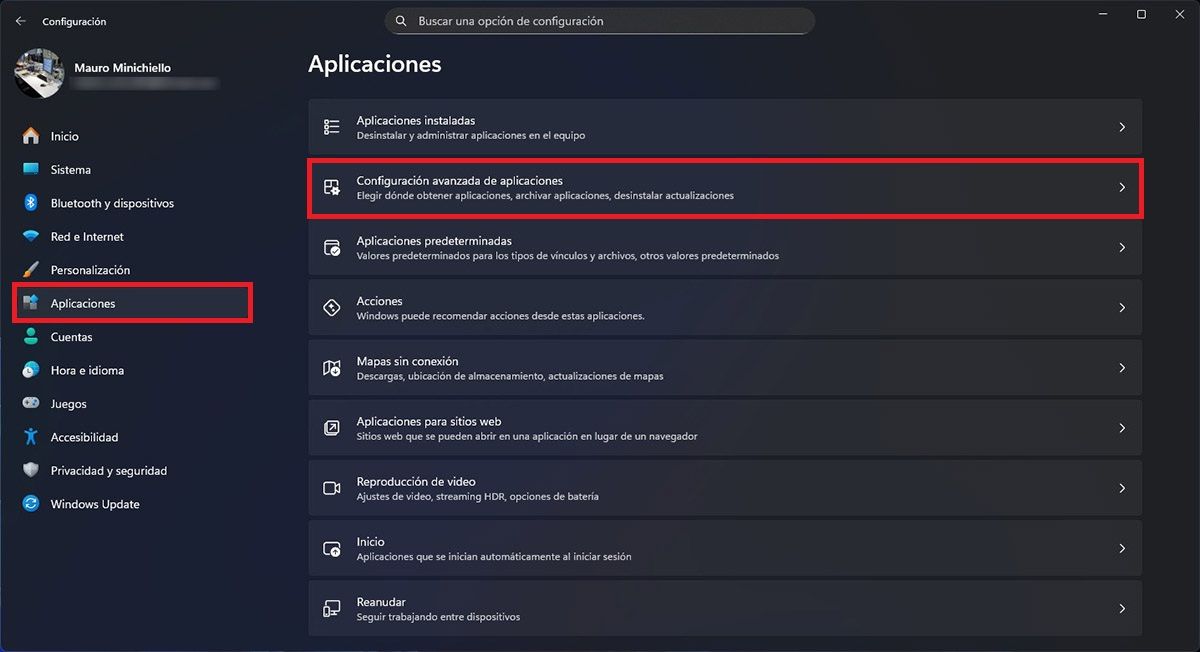
- Go to Settings Windows (pressing the keys Windows + I).
- In the sidebar, go to "Applications".
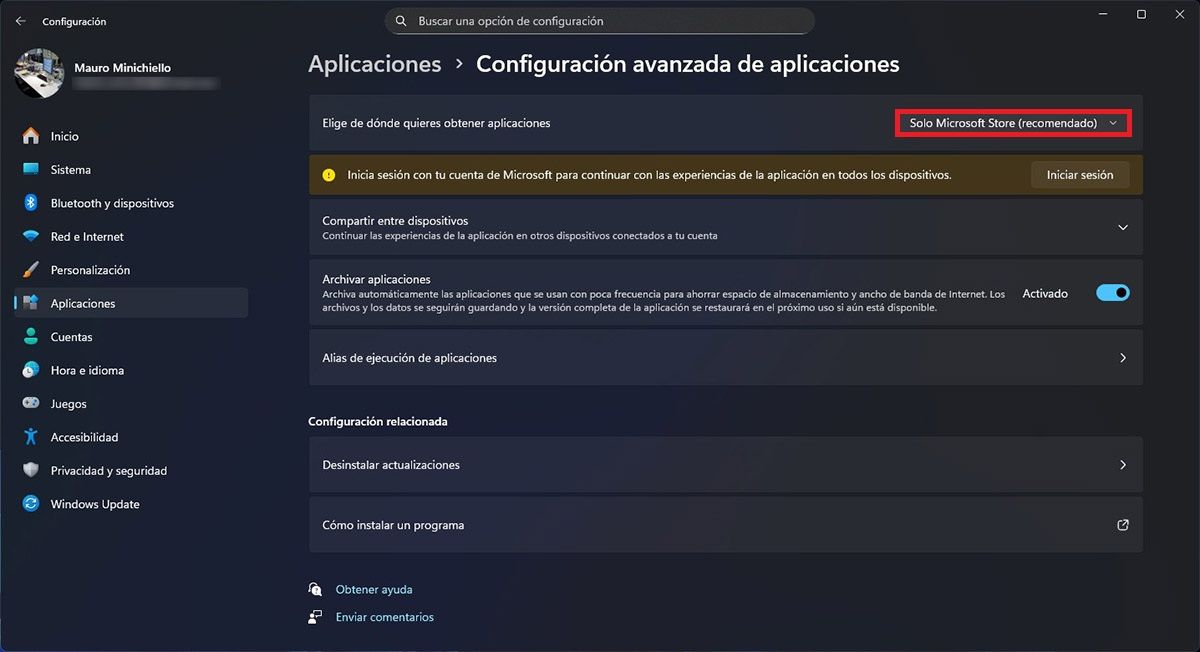
- Enter the section “Advanced application settings”.
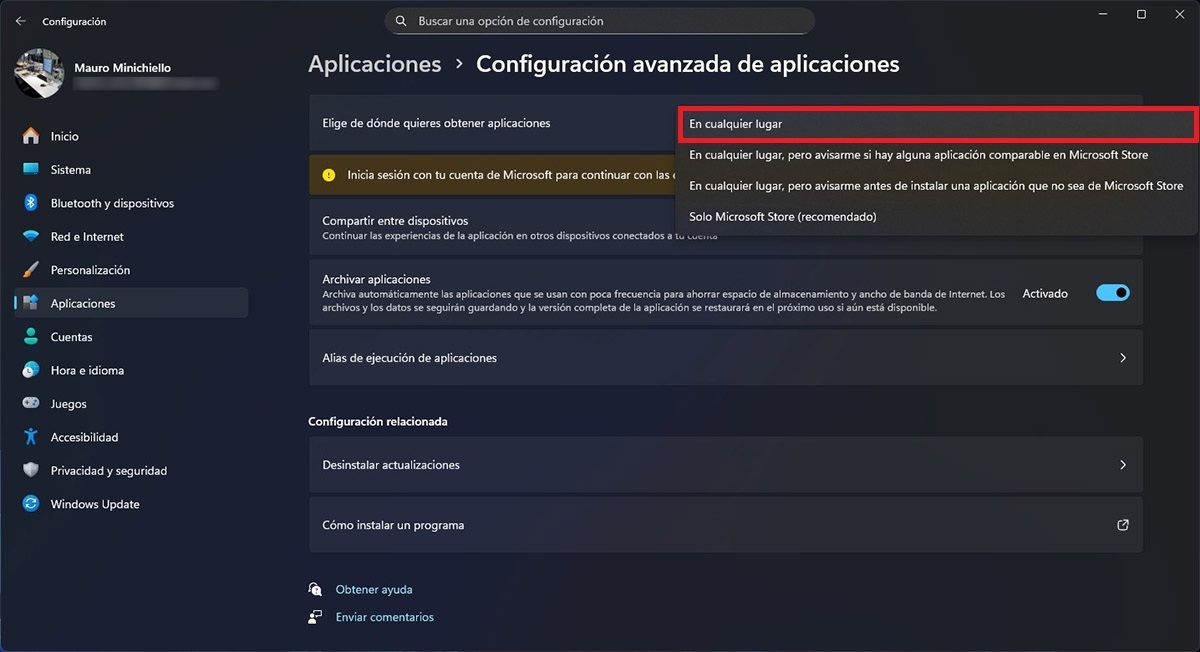
- Look for the option “Choosing where to get the apps”.
- Change the setting to “Anywhere”.
As soon as you make this change, You will be able to install programs downloaded from official websites without the blocking message appearing.. Windows 11 will only show you a mild warning, but it will allow you to continue.
Finally, you may need to log in as an administrator to make this adjustment, as there are times when the team administrator makes this change to prevent bigger problems.