- Fundamental distinction between irreversible physical failures and repairable logical errors in storage.
- Importance of monitoring SMART attributes to predict the imminent death of a unit.
- Critical risks of using automatic repair tools on disks with active mechanical damage.

You've probably experienced your computer suddenly slowing down, freezing, or displaying the infamous blue screen of death for no apparent reason. Often, the culprit behind this chaos is the appearance of bad sectors on the storage drive. Essentially, we're talking about small areas of the disk that are no longer reliable for storing information, which translates into a monumental headache for any user who doesn't have their files backed up.
Having a bad sector is essentially a warning sign. Whether it's a traditional mechanical hard drive or an SSD, when the system can't read or write to a specific point, the integrity of your data starts to falter. Understanding what's really happening under the hood of your hardware is the only way to know if you can fix the problem with a couple of commands or if it's time to consider the drive dead and rush to save what's left.
Difference between physical and logical defective sectors
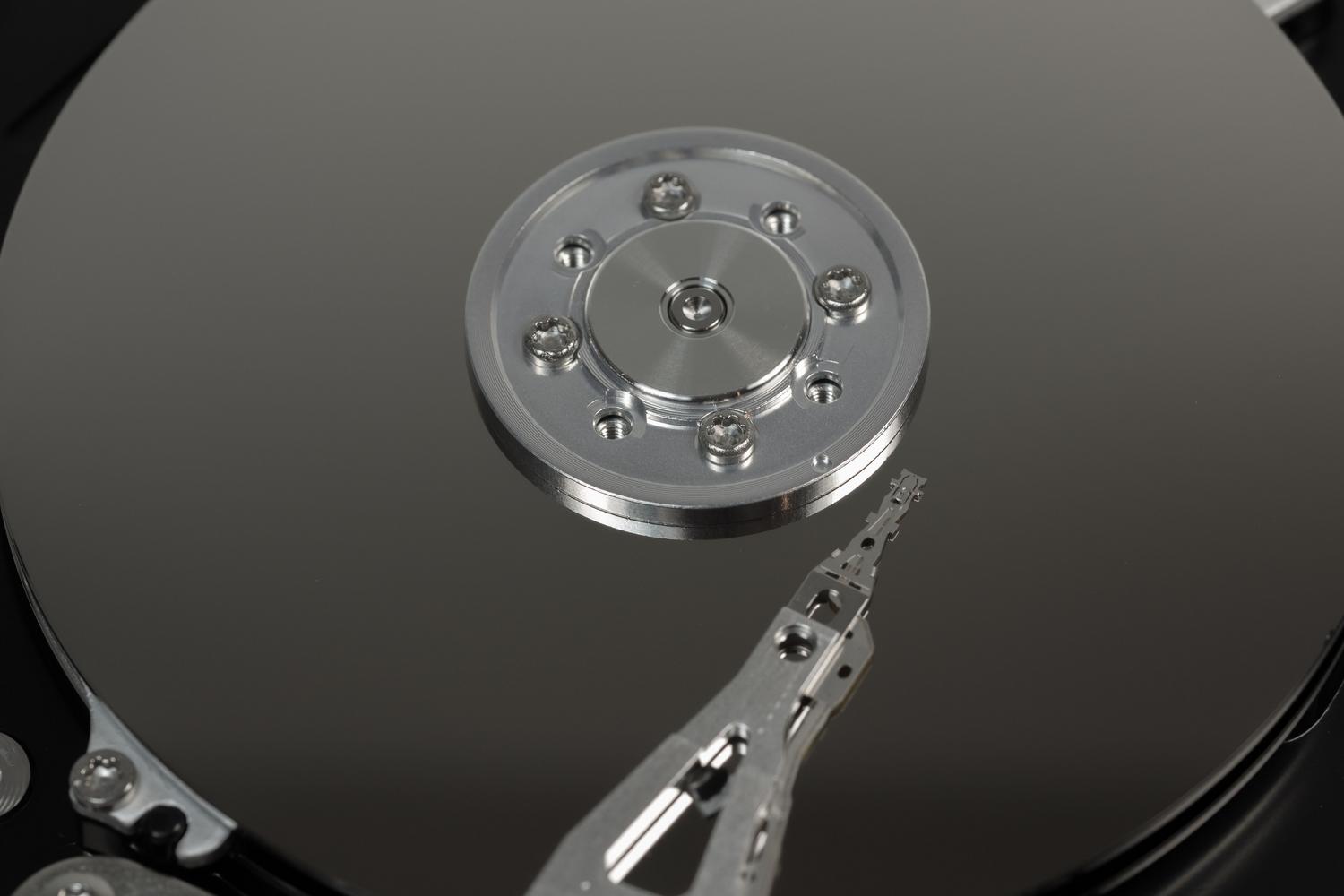
To avoid confusion, the first thing to understand is that not all failures are the same. On one hand, we have hard or physical bad sectors . These occur when there is real and tangible damage to the surface of the magnetic platter or the memory cells. This can be caused by a sharp impact, dust entering the drive, or a manufacturing defect that went unnoticed. The problem with these is that they are irreparable ; the physical material is destroyed, and any data stored there is gone forever.
On the other hand, there are soft or logical bad sectors . Here, the disk surface is intact, but there's a problem with the software or the file system. For example, if there's a sudden power outage while the PC is writing data, an inconsistent record may remain, which the operating system interprets as a read error. The good news is that these can be fixed by restoring data consistency or formatting the drive.
Why do these errors appear?
There are many factors that can damage your hard drive. Overheating is one of the most common, as excessive heat alters internal components and degrades the surface. Time is also a factor: all hardware has a lifespan, and natural wear and tear from use causes sectors to begin failing. We also can't forget malware or virus attacks that can corrupt the file system, creating logical errors that appear as bad sectors.
Another very common danger is the bad habit of abruptly shutting down the computer. When you do this, the hard drive head may not return to its resting position correctly and can end up rubbing against the platter surface , causing instant mechanical damage. Likewise, dust is the number one enemy of hard drives, since even a tiny particle can cause the heads to collide and scratch the area where your photos or documents are stored.
How to detect the problem using SMART
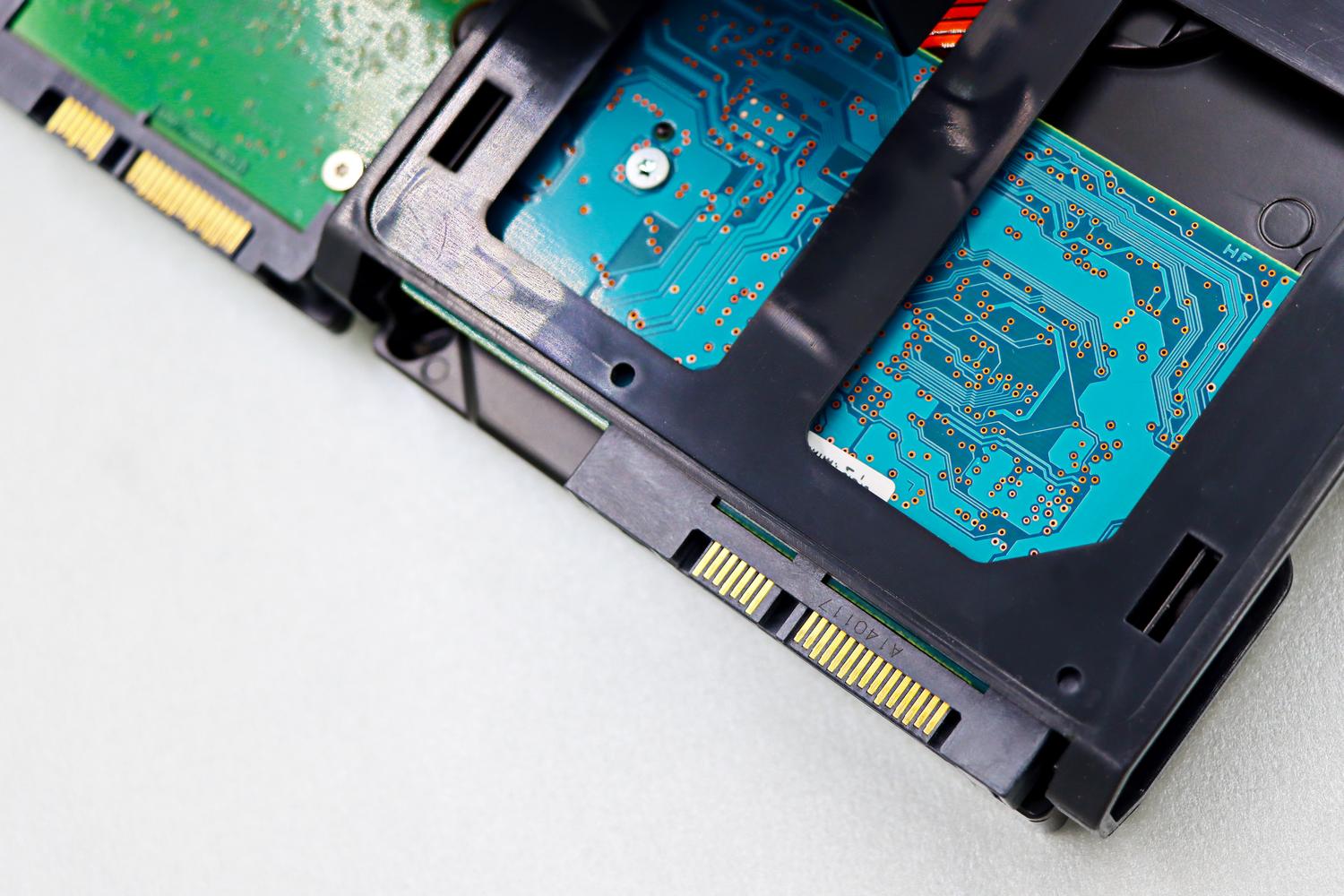
Most modern hard drives come with a self-diagnostic system called SMART . Instead of guessing, you can use programs like CrystalDiskInfo or smartmontools on Linux to see what's going on. There are three key indicators you should watch closely. First, the Reallocated Sectors Count (ID 05) , which tells you how many sectors have already been overwritten by the disk's reserve. If this number is stable, you can breathe a sigh of relief, but if it grows daily, the drive is failing.
Even more dangerous is the Current Pending Sector (ID C5) . These are sectors that the disk suspects are bad but has not yet been able to reallocate. It's a gray area where data is at immediate risk . Finally, the Uncorrectable Sector Count (ID C6) is the confirmation of disaster: sectors that can no longer be read even with the most advanced error correction algorithms.
Repair tools and their dangers
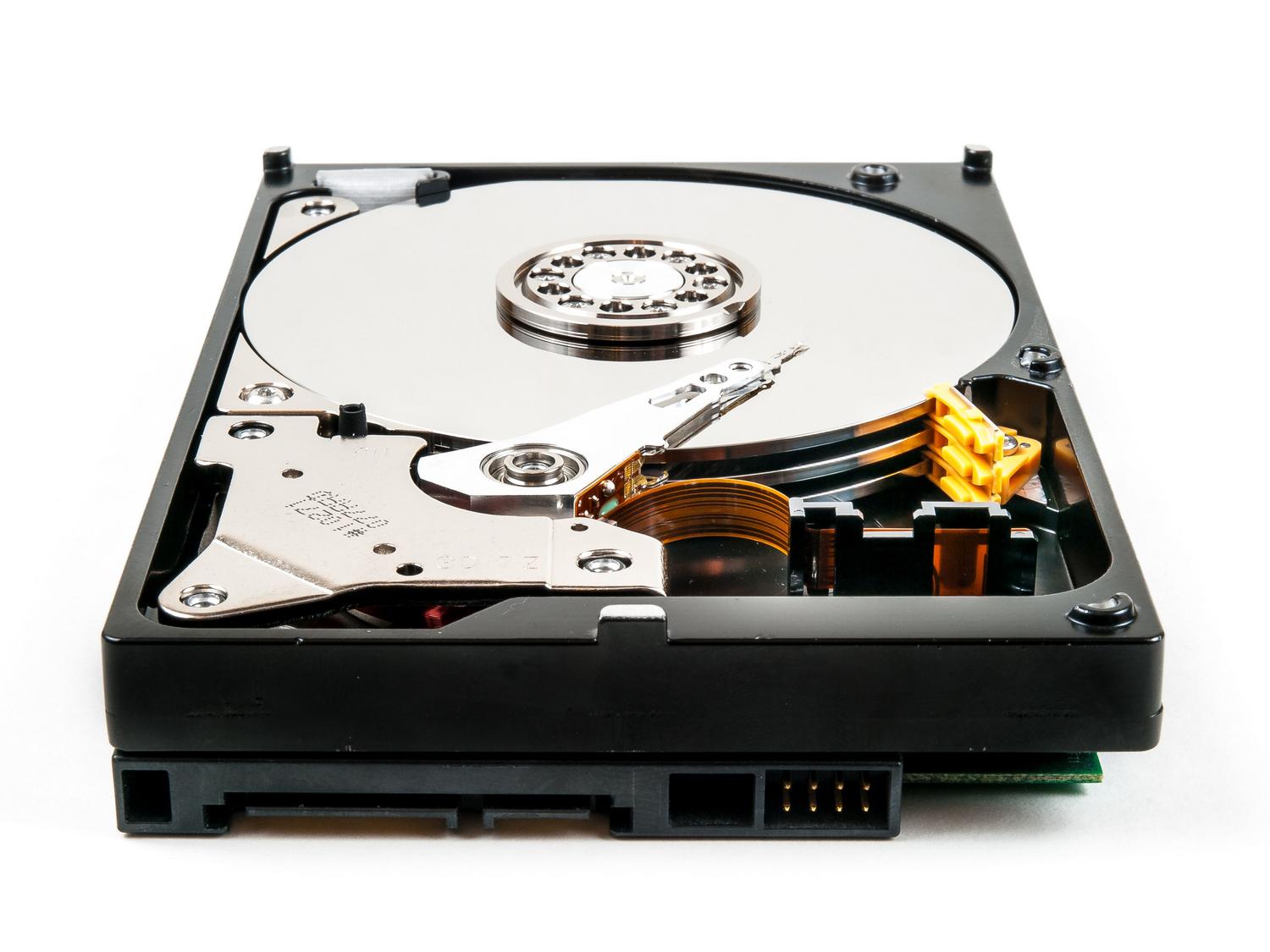
When Windows It detects errors, and the first thing it suggests is to use CHKDSKThis command attempts to locate damaged sectors, recover what is readable, and mark that area as "unusable" so the system won't write there again. It's fantastic for logical errors, but be very careful If the damage is physical, performing an intensive scan on a disk with a damaged head can accelerate the drive's complete destruction due to mechanical stress.
There are other options like Windows PowerShell with the command Repair-Volume or a full format. Unlike a quick format, a full format scans the entire surface and forces the firmware to reallocate the pending sectors. There are also tools like ddrescue for Linux, which is the most professional option for this. cloning a dying diskbecause it reads the data intelligently, skipping the difficult areas and then trying to recover them without stressing the drive.
When is it time to go to the professional lab?
If you hear strange noises, such as repetitive clicking or buzzing , turn off the computer immediately. That sound indicates that the hardware is physically failing, and every second the disk spins, the read/write head may be scratching the platter. In these cases, trying to repair it at home with software is tantamount to losing your data. Only a lab with a cleanroom and equipment like the PC-3000 can open the disk and replace the damaged parts to retrieve the information.
The golden rule is simple: if the data is critical and SMART shows alarming values in C5 or C6, the priority is data recovery , not disk repair. Once you have a complete backup on another healthy drive, you can attempt to repair the original disk if you wish, but never the other way around. Remember that a disk that has already started showing bad sectors will never be reliable again , so replacement is the only real long-term solution.
Prevention and basic care

To prevent your storage from becoming a nightmare, it's best to keep your equipment clean and well-ventilated to avoid overheating . Using a UPS or a quality power strip protects the hard drive from power outages that can cause logical sector errors. Also, avoid moving your desktop or laptop while the hard drive is running, as any strong vibration can cause irreversible physical damage.
Maintaining a backup routine is the only real vaccine against this problem. No drive lasts forever, and even though the firmware manages sector reallocation transparently, the reserve area will eventually fill up and the drive will fail. Paying attention to disk health alerts and not ignoring system slowdowns will allow you to react in time before total data loss occurs.
Taking care of your hardware, monitoring SMART values, and knowing how to differentiate between a software failure and physical damage is key to avoiding the loss of valuable files. While tools like CHKDSK can save you in common situations, mechanical damage requires extreme caution or professional intervention. The best strategy will always be prevention through cooling and regular backups, since a hard drive with bad sectors is essentially a ticking time bomb that will eventually fail.